How To Subscribe the RSS Feeds
This page shows how to add our site to your RSS reader so you can access our posts instantly without leaving your current tasks. To ensure that our feed works correctly, we tested it with various RSS applications such as Thunderbird, feeeed for iOS, and other apps that support standard RSS feeds.
What’s the purpose of the feed?
Since the site is powered by Hugo and Hextra, it can generate an RSS feed that lets you read our posts outside of the website. The advantage is that you no longer need to visit the Creator’s Blog manually every time you want to see what’s new.
Adding Benjamin Fernandez Media to your RSS feeder
Choosing a feed channel
We have three channels available based on the blog sections on our site. The posts you see will differ depending on which RSS or Atom feed you subscribe to.
For the main website, copy this link into your feeder settings:
http://benfernandezmedia.github.io/index.xmlTo get our website updates channel, which is the Recent Changes, copy this link into your feeder settings:
http://benfernandezmedia.github.io/help/updates/index.xmlRegarding MediaPlay
This feed will be updated with new articles depending on some factors based on what media content we review so it takes time to write new issues of the newsletter.
Choosing an RSS feeder
Since we did a test run on our channels with Thunderbird and feeeed for iOS devices, it’s recommended to use either of the two to connect with our feeds. If you have another feeder from another platform, it should work so you can get access to our channels. Just a heads up: Please make sure you validate our channels to ensure the channel is connected to your feeder.
Setting up on Thunderbird
Step 1 - Creating a feed account
Let’s say you have a email client that supports RSS feeds. Thunderbird is no surprise due to the fact is from the company who made Firefox, Mozilla. On Thunderbird, go to the menu > New Account > Feed
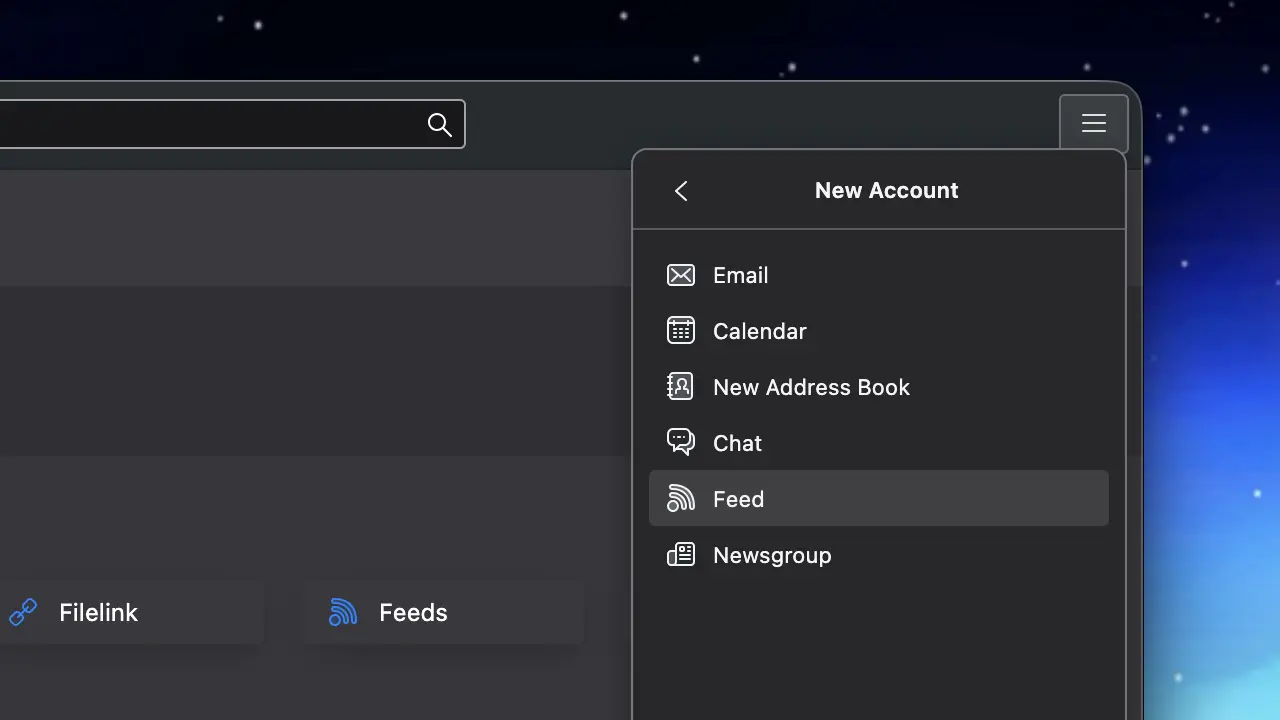
When a window pops up to give the feed account a name, just give the account a name you want to give then continue on.
Step 2 - Adding BFM as a subscription
After creating the feed account, on the account’s main menu, select Manage feed subscriptions
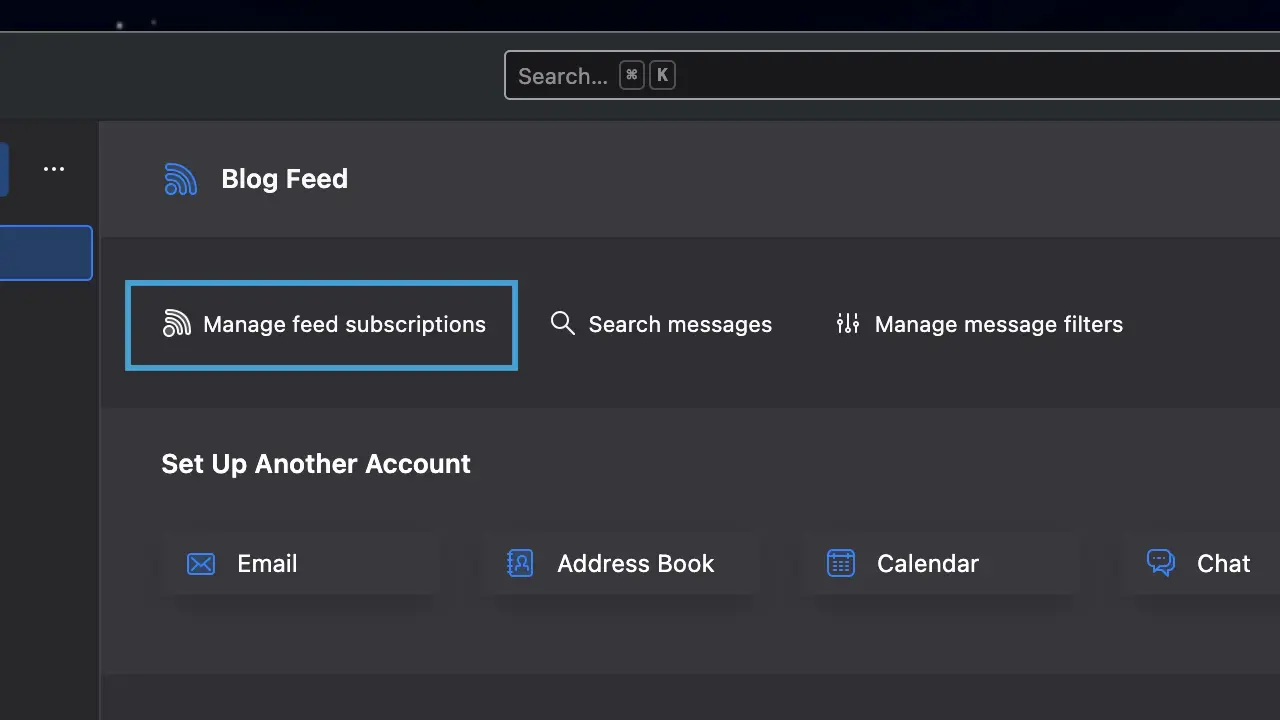
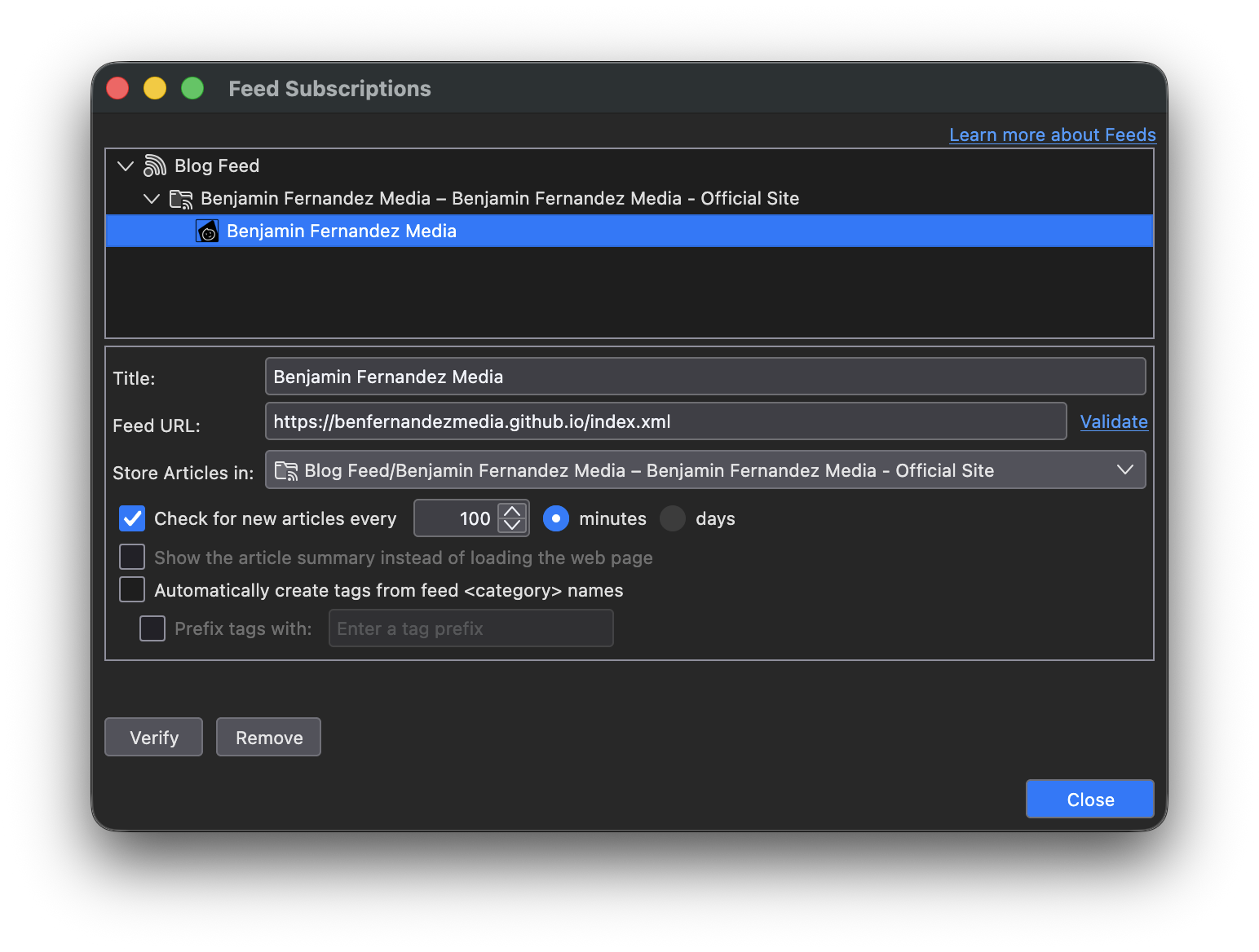
Once select, a window will prompt you to enter the feed URL information. After you paste our RSS feed into Thunderbird and clicking on Add, if you see “Benjamin Fernandez Media” on the list of subscriptions, that means you are officially connected to our feed! When done, click Close
Step 3 - Getting our posts
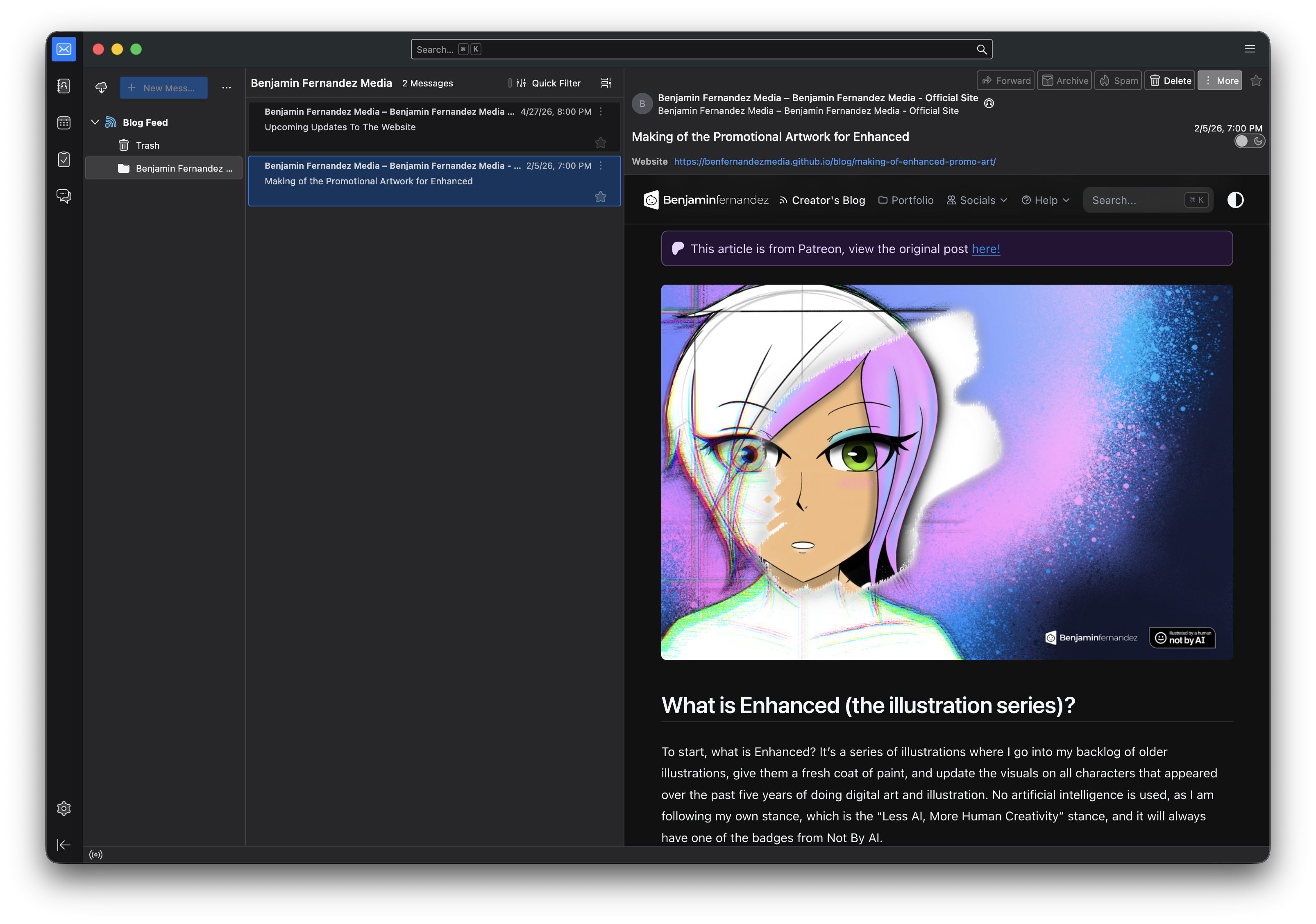
After configurating our feed into Thunderbird, you should see our posts appearing on the client, just like you’re receiving email.
Congratulations, you have set up and subscribed to our RSS feed! When we post on our site, they will appear through our RSS feed and into your feeder.